

Start with what your phone already has. Enable Emergency SOS on your iPhone or Android device, add your emergency contacts, and test the trigger before you ever need it. Then pair that native tool with one lightweight family or location-sharing app for ongoing monitoring. That two-step setup covers the vast majority of real-world situations without requiring a paid subscription.
The two-step approach:
- Step 1: Activate your phone’s built-in Emergency SOS (a rapid series of power-button presses on Android; press and hold the side button and a volume button on iPhone). Add emergency contacts and medical information now.
- Step 2: Choose one third-party app for real-time location sharing or monitored check-ins, depending on whether you need family visibility, lone-worker coverage, or a discreet SOS option.
Next steps: Configure your emergency contacts, run a test trigger with a trusted person present, and audit every app’s location and microphone permissions before you rely on it.
Table of Contents
- What personal safety apps actually do
- Built-in phone safety tools and how to set them up in Canada
- How do the most-used safety apps compare?
- How to choose the right safety app for your situation
- Privacy, legal, and reliability considerations
- Limitations and best practices for using safety apps effectively
- Why apps help — and why real-world training matters more
- Key takeaways
- Apps are tools — training is the skill
- Streetsafeselfdefence training pairs directly with your safety app setup
- Authoritative sources and official links for Canadian users
What personal safety apps actually do
The term “personal safety app” covers a wide range of tools, from simple panic buttons to monitored dispatch services. Understanding the core features helps you match the right tool to your actual situation.
Core features to know:
- Emergency SOS: Triggers a call to 911 (or local emergency services) and simultaneously notifies pre-set contacts with your GPS location. This is the most time-critical feature and the one most people set up incorrectly or not at all.
- Real-time location sharing: Broadcasts your GPS position continuously to chosen contacts. Useful for family coordination, walking alone at night, or lone-worker check-ins.
- Safety check / timer: You set a countdown. If you do not check in before it expires, the app alerts your contacts or a monitoring centre. Ideal for situations where you cannot safely trigger an SOS manually.
- Incident recording: Audio or video capture that begins automatically when SOS is triggered, or manually on demand. Some apps upload recordings to a server in real time so evidence is preserved even if your phone is taken.
- Geofencing: Sends an alert when someone enters or leaves a defined area. Primarily used in family safety apps for children or dependent adults.
- Monitored dispatch vs. self-shared alerts: Self-shared alerts notify your personal contacts. Monitored services route alerts to a professional response centre that can verify the situation and escalate to 911 with actionable context. The distinction matters significantly for lone workers or high-risk situations.
In practice, a safety check timer is more useful than an SOS button when you are walking to your car in a parking garage, because you can set it before you leave and cancel it when you arrive safely. An SOS button is the right tool when something is already happening. Knowing which feature fits which scenario is what separates prepared users from people who install an app and never think about it again.
Built-in phone safety tools and how to set them up in Canada
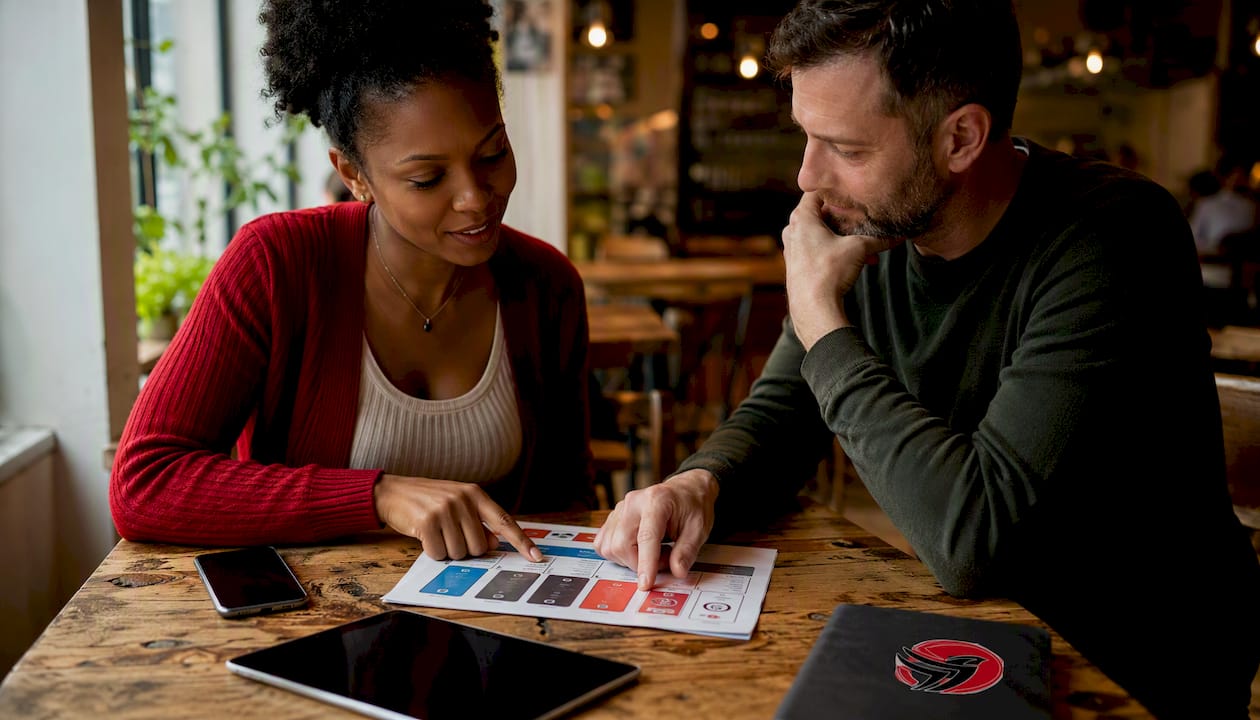
Your phone likely already has more safety capability than any third-party app you could download. Android Personal Safety and Apple Emergency SOS are both deeply integrated into their respective operating systems, which means they work more reliably than apps that depend on background permissions staying active.
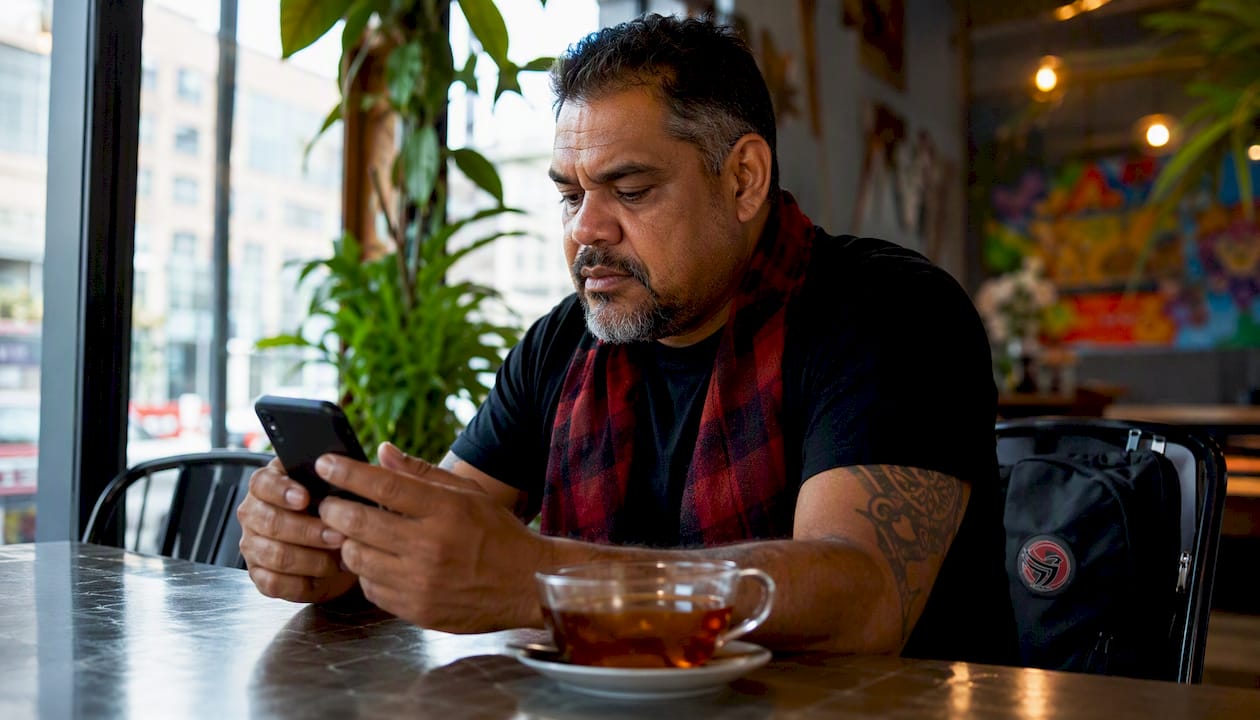
Android Personal Safety vs. Apple Emergency SOS at a glance: Android Personal Safety is a standalone app pre-installed on Pixel devices and available on many Android phones; it bundles Emergency SOS, Emergency Sharing, Safety Check, and incident video recording into one place. Apple Emergency SOS is a hardware-level feature built into every iPhone, requiring no separate app, and it connects directly to 911 with location data.
Setting up Android Personal Safety
- Open the Personal Safety app (search your app drawer if it is not on your home screen; install it from Google Play if needed).
- Add at least two emergency contacts under Emergency Sharing.
- Fill in your medical information (blood type, allergies, medications) so first responders can access it from your lock screen.
- Enable the power button shortcut: five rapid presses triggers Emergency SOS.
- Test the shortcut with a contact standing by. Cancel before it dials 911.
- Go to Settings > Apps > Personal Safety > Battery and set it to Unrestricted so the OS does not suspend it.
Pixel phones also support car crash detection and Pixel Watch fall detection in supported regions. Crash detection availability in Canada varies by carrier and device generation; check your Pixel’s safety settings to confirm whether it is active on your device.
Setting up Apple Emergency SOS
- Go to Settings > Emergency SOS.
- Enable Call with Side Button (press and hold the side button and either volume button).
- Add emergency contacts in the Health app under Medical ID.
- Turn on Share During Emergency Call so your location is sent automatically.
- Test by pressing the side and volume buttons together until the slider appears, then release without calling.
- Confirm your Medical ID is visible from the lock screen under Emergency.
Canada-specific notes:
- Both platforms connect to 911 in Canada. Location data is transmitted to emergency services where technically supported by the local 911 centre; not all Canadian 911 centres have full wireless location capability yet.
- Alert Ready is Canada’s national public alerting system. It delivers emergency alerts (Amber Alerts, severe weather, public safety emergencies) via wireless broadcast to your phone automatically. Alert Ready operates independently of any safety app and requires no setup beyond keeping wireless emergency alerts enabled in your phone settings.
- Car crash detection on Pixel phones is a hardware and software feature; its regional availability in Canada is not uniformly confirmed across all carriers.
How do the most-used safety apps compare?
The table below covers the dimensions that matter most when choosing among the options available in Canada. Pricing reflects publicly listed tiers at time of writing; always verify current pricing directly with the provider.
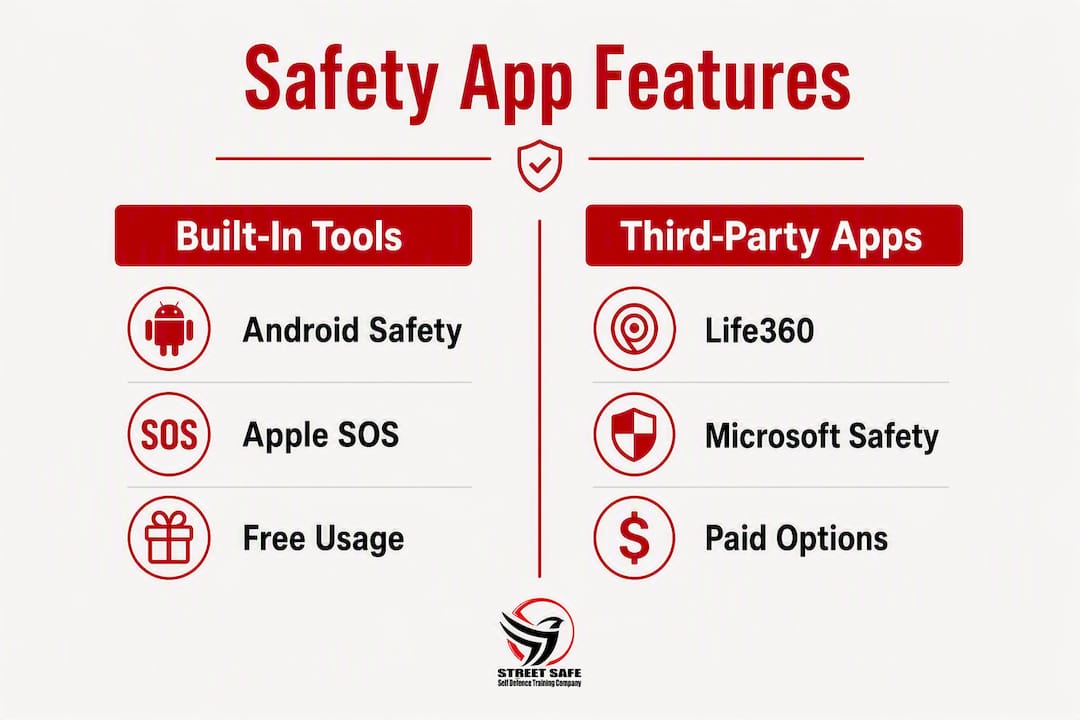
| Feature | Android Personal Safety | Apple Emergency SOS | Life360 | Microsoft Family Safety | bSafe |
|---|---|---|---|---|---|
| Emergency method | Calls 911 + notifies contacts | Calls 911 + notifies contacts | Notifies contacts (no direct 911 call) | Notifies contacts | Notifies contacts; optional monitored response |
| Real-time location sharing | Yes (during emergency sharing) | Yes (during emergency call) | Yes, continuous | Yes, continuous | Yes |
| Recording / ambient capture | Video recording on SOS trigger | No | No | No | Audio recording on SOS |
| Cost | Free | Free (built-in) | Free tier; paid plans available | Free with Microsoft 365 Family | Free tier; paid subscription for monitoring |
| iOS / Android (Canada) | Android only | iOS only | Both | Both | Both |
| Privacy / data retention | Google account; review privacy settings | Apple account; location shared during emergency only | Third-party; review data-sharing policy carefully | Microsoft account; parental visibility | Third-party; review permissions |
| Offline / poor signal | SOS may fail without signal | SOS may fail without signal; satellite SOS on iPhone 14+ | Requires data connection | Requires data connection | Requires data connection |
A note on each category:
Android Personal Safety and Apple Emergency SOS are the strongest starting points because they are OS-integrated and do not depend on a third-party server staying online. Life360 is the most widely used family-tracking platform and works well for continuous location visibility, though its data-sharing practices deserve a careful read of the privacy policy before you hand it to a teenager. Microsoft Family Safety adds screen time controls and geofencing alongside location, making it more useful for families managing younger children across Windows, Xbox, and Android devices. bSafe is one of the few third-party apps that includes a follower mode, a fake call feature, and a timer-based check-in, which makes it a practical option for women walking alone or lone workers who need a discreet SOS option.
Some platforms and services offer paid monitored response that routes alerts to a professional centre rather than just personal contacts. This model is particularly relevant for lone workers, where a trained operator can verify the situation and escalate to 911 with ambient audio or confirmed location rather than relying on a contact who may not answer their phone.
iPhone 14 and later models also support satellite Emergency SOS in Canada, which can connect to emergency services when no cellular or Wi-Fi signal is available. This is a meaningful advantage in rural or remote areas.
How to choose the right safety app for your situation
The right app depends on three things: who responds when the alert fires, whether you need ongoing location visibility or only emergency coverage, and what the app costs relative to what it actually delivers.
Before you install anything, verify:
- Your phone’s OS version supports the app (some features require recent Android or iOS versions).
- The app’s 911 behaviour: does it call directly, or only notify contacts?
- Whether the app requires “always on” location permission and whether you are comfortable granting it.
- Whether the app has a wearable companion (Pixel Watch, Apple Watch, Garmin) if you want wrist-based triggers.
- That the app is not subject to battery optimisation that could suspend it in the background.
Decision flow:
- You need monitored professional response (lone worker, high-risk role, domestic safety concern): Look for a platform with a paid monitoring centre that can dispatch or escalate independently. Self-shared alerts are not sufficient when your contacts may be unavailable or when you need verified intervention.
- You need family location sharing and geofencing (children, elderly relatives, group travel): Google Family Link or Microsoft Family Safety cover this well. Both require the tracked device to be online and connected; location updates stop if the device is off or out of data coverage.
- You need a discreet SOS or walking safety tool (commuting alone, real estate showings, campus safety): bSafe or a community-based app with a silent trigger is a better fit than a loud alarm. Silent activation is often safer in adversarial situations.
- You need basic emergency coverage with no subscription: Start with your phone’s native tools. They are free, reliable, and already on your device.
On pricing: Free tiers typically cover basic SOS and location sharing. Paid tiers add monitoring centre access, extended location history, and driving reports. A monitored response subscription changes the nature of the service entirely; you are no longer relying on a contact to see a notification and act. That distinction is worth the cost for lone workers or anyone in a role with elevated personal risk.
Privacy, legal, and reliability considerations
Installing a safety app means granting it access to your location, and often your microphone, camera, and contacts. That access is only appropriate when you understand what the app does with it.
Privacy checklist before installing:
- What location permission does the app require? “Always allow” means it tracks you continuously, not only during an emergency.
- Does the app store your location history, and for how long? Where are those servers located?
- Who can access shared location data? Contacts you choose, a monitoring centre, or the app company’s own analytics?
- If the app records audio or video, where does that recording go? Is it encrypted in transit?
- Does the app share data with third parties or advertisers?
Canada-specific considerations:
- Canadian 911 centres vary in their ability to receive precise GPS coordinates from wireless calls. Urban centres generally have better location capability than rural ones.
- Alert Ready alerts are delivered by wireless broadcast and do not require an app or data connection; they are separate from any personal safety app.
- If you use a safety app while travelling or roaming, your location data may cross international borders. Protecting your mobile data and account credentials while roaming reduces the risk of interception or account compromise that could affect your safety app’s reliability.
- Recording laws in Canada vary by province. In most provinces, one-party consent applies to audio recording, meaning you can record a conversation you are part of. Verify the rules in your province before relying on ambient audio recording as evidence.
Pro Tip: On Android, go to Settings > Apps > [your safety app] > Battery and set it to “Unrestricted.” Then go to Settings > Location > App permissions and confirm the app has “Allow all the time” enabled. These two steps prevent the OS from suspending the app when you need it most. Test by locking your phone for 10 minutes and then checking whether the app still shows your location to a trusted contact.
Limitations and best practices for using safety apps effectively
Apps fail. Cellular coverage drops. Batteries die. A safety app is a tool, not a guarantee, and treating it as one changes how you prepare.
Common failure modes:
- No cellular or GPS signal means no SOS transmission and no location update. Rural Canada has significant coverage gaps.
- Battery optimisation settings on Android can suspend third-party apps, making them unresponsive precisely when they are needed.
- False alarms erode trust with your contacts and, in monitored services, can result in unnecessary emergency responses.
- Delayed human monitoring means a contact or operator may not see an alert for minutes. That delay matters in fast-moving situations.
- An app on a locked or seized phone cannot be triggered.
Best practices:
- Always have a pre-planned exit route and a verbal check-in plan with a trusted contact, independent of any app.
- Use silent triggers in situations where activating a loud alarm could escalate a threat. Many apps offer a PIN override or a discreet hold-button method.
- Test your full setup monthly: trigger the SOS in test mode, confirm your contacts receive the notification, and check that your location appears correctly.
- Keep your phone charged above 20% when you know you are entering a higher-risk situation.
- Pair app use with situational awareness skills so you are reading your environment before a situation escalates, not reacting after it already has.
In domestic or adversarial situations specifically: A loud alarm can provoke rather than deter. Know whether your app has a silent mode before you are in a situation where you need it. Pre-configure a code word with a trusted contact so they know to call for help even if your message sounds casual.
Why apps help — and why real-world training matters more
Apps amplify preparedness. They do not create it. A panic button is only as effective as the person pressing it, and only as useful as the plan that follows the alert.
Security professionals consistently describe personal safety apps as force multipliers: they increase your options for getting help, but they depend on prior decision-making and trained responses to be effective. An alert that fires while you freeze, or while you are unsure of your location, or while your phone is out of reach, does not change the outcome.
Consider a practical scenario: a real estate agent showing a property alone sets a 30-minute safety check timer before entering. The timer fires because the showing runs long and she forgets to reset it. Her contact calls. She answers and cancels the alert. That is the system working. Now consider the same scenario without the timer, without a contact who knows where she is, and without a practiced habit of setting the check-in. The app installed on her phone is irrelevant.
The most effective approach combines connectivity-based tools with environmental assessment, pre-planned exit routes, and practised check-ins. That combination is what Streetsafeselfdefence builds into every training session: not just what to do when something goes wrong, but how to read a situation before it does.
For anyone using a safety app in a professional or high-risk context, pairing it with self-defence techniques grounded in real-world scenarios closes the gap between having a tool and knowing how to use it.
Key takeaways
The most reliable personal safety setup in Canada combines your phone’s native Emergency SOS with one trusted location-sharing or monitored app, properly configured and tested before you need it.
| Point | Details |
|---|---|
| Enable native SOS first | Android Personal Safety and Apple Emergency SOS are free, OS-integrated, and more reliable than any third-party app. |
| Configure before you need it | Add emergency contacts, fill in medical info, and test the trigger. Unconfigured tools fail at the worst moment. |
| Match the app to the threat | Monitored response for lone workers and high-risk roles; family location apps for ongoing visibility; silent triggers for adversarial situations. |
| Privacy requires active review | Check location permissions, data retention, and cross-border data sharing before granting “always allow” access. |
| Streetsafeselfdefence training complements apps | Apps buy time; Streetsafeselfdefence’s reality-based training builds the skills to use that time effectively. |
Apps are tools — training is the skill
The conversation about personal safety apps often focuses on features and pricing. What gets less attention is the gap between having an app and being prepared. An app on an unconfigured phone, with no tested contacts and no practised response, offers very little real protection.
At Streetsafeselfdefence, mobile training sessions incorporate check-in drills and safety timer practice as part of the programme. Participants learn to set a timer before entering a building, to identify a verbal code word with a contact, and to practise calm, deliberate SOS activation under mild stress. Those habits, repeated until they are automatic, are what make a safety app genuinely useful rather than a false sense of security.
The trauma-informed approach matters here too. In high-stress situations, people revert to what they have practised. Someone who has never practised using their phone’s SOS feature under any kind of pressure is unlikely to use it correctly when it counts. Someone who has run through the scenario in a low-stakes training environment has a real advantage.
Apps are worth installing and configuring. They are not worth relying on exclusively.
Streetsafeselfdefence training pairs directly with your safety app setup
Personal safety apps give you a way to call for help. Streetsafeselfdefence gives you the skills to stay safe while help is on the way.
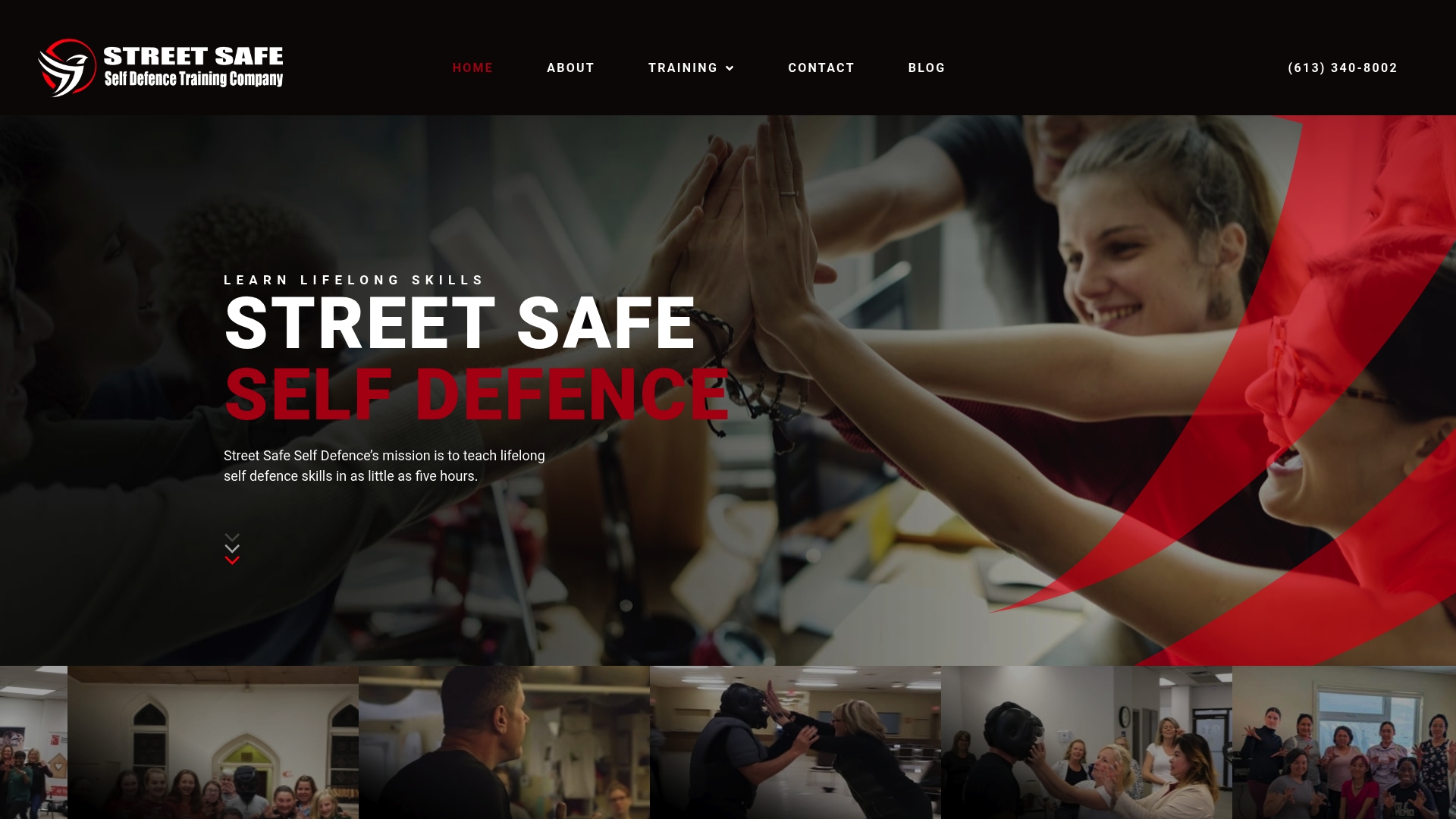
Streetsafeselfdefence’s mobile training comes to you: onsite workshops for corporate teams, real estate professionals, high school students, and individuals, delivered across Canada with no venue to book and no commute required. Courses cover reality-based violence prevention, situational awareness, trauma-informed instruction, and digital risk awareness in a condensed format. Every session can incorporate app-based check-in drills so participants leave with both the physical skills and the practised habits that make safety technology actually work.
For women, lone workers, or anyone who has ever wondered whether their safety app would actually help in a real situation, the answer starts with training. Book a session or explore available courses to find the right fit for your group or individual needs. If you prefer to start at home, self-defence training at home is also available.
Authoritative sources and official links for Canadian users
Use these to verify setup steps, privacy policies, and Canadian-specific availability directly with primary sources.
- Android Personal Safety app — official overview: Feature descriptions, setup guidance, and Pixel-specific capabilities including crash detection.
- Personal Safety on Google Play: Install page with current version notes and user reviews.
- Apple Emergency SOS — Apple Support: Official setup instructions for iPhone Emergency SOS, including satellite SOS availability in Canada.
- Microsoft Family Safety: Feature overview for location sharing, geofencing, and screen time controls across Windows, Xbox, and Android.
- Google Family Link — parental controls: Setup and limitations for location tracking and parental controls on Android devices.
- Life360 — family location and safety: Platform overview; review the privacy policy before enabling continuous tracking.
- Android battery optimisation — technical guidance: Explains how to prevent the OS from suspending safety apps in the background.
- Mobile security tips for travellers: Practical advice on protecting location data and account credentials while roaming.
- Alert Ready (alertready.ca): Canada’s national public alerting system. No app required; keep wireless emergency alerts enabled in your phone settings.
- Your provincial or territorial 911 authority: Confirm local 911 location-data capability and any province-specific recording consent rules before relying on those features.