

The five actions that stop most attacks are simple: use long, unique passwords through a password manager, turn on multifactor authentication, keep your software updated, watch for phishing, and back up your important files. None of these guarantee you’ll never have a problem, but together they close the doors most criminals actually walk through. The sections below walk through exactly how to do each one.

TL;DR:
- Using a password manager to create and store unique, strong passphrases significantly reduces the risk of account compromise caused by reused or weak passwords.
- Enabling multifactor authentication on your most critical accounts, such as email and banking, adds a vital security layer that most attackers cannot bypass easily.
- Regularly updating software and turning on automatic patches close security gaps exploited by known vulnerabilities, preventing many common breaches.
- Backing up files according to the 3-2-1 rule and reviewing privacy settings minimize potential data loss and limit exposure from social media sharing.
- Being cautious with personal information online, avoiding untrusted Wi-Fi networks without a VPN, and monitoring accounts frequently help detect and prevent unauthorized access early.
Table of Contents
- Digital safety basics: the core 4 you need first
- Backups, privacy settings, and everyday device hygiene
- A simple 7-step routine to secure your accounts today
- Digital safety basics for families and children
- What the experts say about password managers and security friction
- How to recognize and avoid malware and ransomware
- Why digital device encryption matters more than people think
- Using and managing VPNs for privacy
- Handling your personal information safely online
- Regularly monitoring your accounts for unauthorized access
- Trusted resources to act on right now
- An editorial take on the seven-step routine
- Sources
Digital safety basics: the core 4 you need first
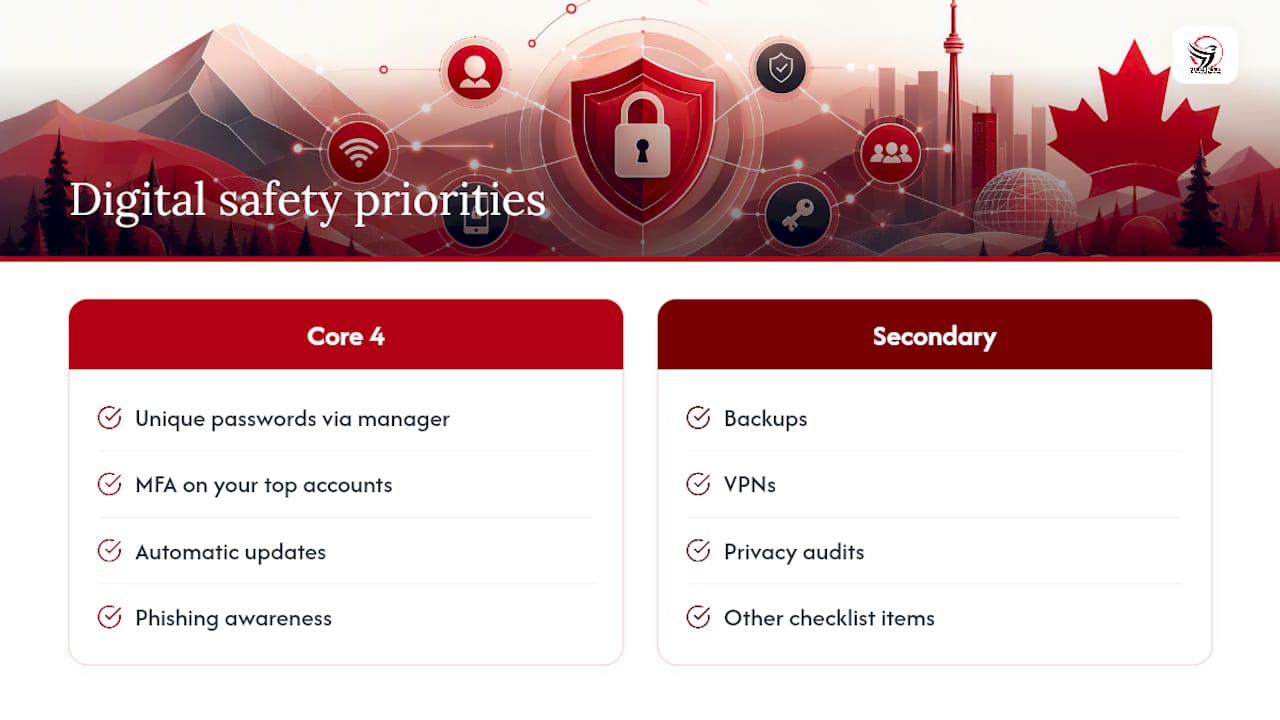
Most guidance on protecting yourself online boils down to four moves, a framework the National Cybersecurity Alliance calls the “Core 4”: long unique passwords, multifactor authentication, regular updates, and phishing awareness. Master these four and you’ve eliminated the majority of common attack paths. Here’s how to actually do each one.
Strong, unique passwords, made simple. Forget “P@ssw0rd123” style complexity. A passphrase of four or five random words, something like “lantern-turtle-window-July,” is longer, easier to remember, and much harder to crack than a short jumble of symbols. The key word is unique: never reuse the same password across two accounts, because one leaked login on a shopping site shouldn’t unlock your email too.
Get a password manager. Remembering fifty unique passphrases is unrealistic, which is why the Canadian Centre for Cyber Security strongly recommends using a password manager to generate and store them. It also lets you audit old accounts you’d forgotten existed and delete the ones you no longer use, shrinking the total number of places a hacker could hit. Migration is a one-time job: list your most important logins, add them to the manager one at a time, and protect the vault itself with a strong master passphrase plus MFA.
Turn on multifactor authentication (MFA). MFA means a second proof of identity beyond your password, usually a code or a prompt. Your options:
- Authenticator apps (like Google Authenticator or Authy): strong, free, and not tied to your phone number.
- SMS codes: better than nothing, but vulnerable to SIM-swapping scams, so avoid them for your most sensitive accounts.
- Security keys (physical USB or NFC devices): the strongest option, worth it for email and banking.
Start with the accounts that matter most: email first (since it resets everything else), then banking, then health portals.
Keep software updated. Most breaches exploit known flaws that a patch already fixed months earlier. Turn on automatic updates for your operating system, browser, and apps rather than clicking “remind me tomorrow” every time. This single habit closes more security gaps than almost anything else on this list.
Spot phishing before it spots you. Watch for urgency (“your account will be suspended in 24 hours”), mismatched sender addresses, and links that don’t match the company they claim to represent. The University of Washington recommends a simple habit: before clicking, hover over the link to see the actual URL, and if a message claims to be from your bank, open a new browser tab and log in directly instead of clicking through.
Pro Tip: If an email pressures you to act immediately, that urgency is the red flag itself. Legitimate organizations rarely threaten to lock your account within hours.
Backups, privacy settings, and everyday device hygiene
Beyond the Core 4, a handful of habits round out solid digital footprint safety. None take more than a few minutes, and together they cover the gaps password hygiene alone won’t close.
- Follow the 3-2-1 backup rule. Keep three copies of important files, on two different types of storage, with one copy stored offsite (like cloud storage). A phone photo library backed up only to the phone itself is one cracked screen away from gone forever. Get Safe Online recommends pairing a cloud service with a physical external drive for anything irreplaceable.
- Audit your privacy settings. Most social platforms default to sharing more than you’d choose. Spend ten minutes checking who can see your posts, location tags, and contact list, and turn visibility down to “friends” or “private” wherever the option exists.
- Share with care. Before posting a photo, ask whether it reveals your address, workplace, school, or daily routine. Strip location metadata from photos before posting, and avoid tagging your real-time location.
- Secure your home router. Change the default admin password the day you set it up, keep the firmware updated, and choose WPA3 encryption if your router supports it. This is the single most overlooked device in most homes.
- Treat public Wi-Fi as untrusted. Avoid logging into banking or email on open café or airport networks. A VPN adds a layer of protection here, which the later section on VPNs covers in more detail.
- Lock your devices properly. Use a PIN, passphrase, or biometric lock, not “swipe to unlock.” Review app permissions occasionally and delete apps you no longer use, since each one is a potential access point sitting idle on your phone.
A simple 7-step routine to secure your accounts today
You can complete this entire routine in about an hour, then revisit it regularly.
- List your highest-risk accounts. Email, banking, and health portals first, since these have the most damage potential and often control password resets for everything else.
- Install a password manager and create your vault with a strong, unique master passphrase.
- Replace weak or reused passwords on your top accounts with random passphrases generated by the manager.
- Enable MFA on email and banking first, using an authenticator app or security key over SMS where possible.
- Turn on automatic updates for your phone, computer, and browser.
- Back up your files using the 3-2-1 rule, cloud plus external drive.
- Check your privacy settings on your top two or three social platforms and tighten anything set to public.
Put a recurring reminder on your calendar every three months to repeat steps 3 and 7, since accounts and settings drift over time.
Pro Tip: If you suspect an account’s been compromised, don’t click any “verify your account” links in emails. Go directly to the site by typing the address yourself, change the password immediately, and check the account’s recent login activity for anything unfamiliar.
Digital safety basics for families and children
Restriction alone doesn’t work as well as conversation. Research from the eSafety Commissioner found that kids are far more likely to report a problem when their household has open, non-punitive communication about online life, and far less likely to speak up when they expect to be shamed or have devices confiscated.
Build a short family tech agreement together instead of imposing rules alone:
- Agree on which apps require parental approval before downloading.
- Set screen-free times (meals, an hour before bed) that apply to every device in the house, adults included.
- Decide together what’s okay to share publicly versus with friends only.
Start parental controls with content filtering and screen-time limits appropriate to your child’s age, loosening them gradually as they demonstrate good judgment. If a child reports bullying or doxxing, take it seriously immediately: screenshot the evidence, report it to the platform, and involve school administration or local authorities if the behaviour includes threats or repeated harassment.
What the experts say about password managers and security friction
“Password managers let you audit old accounts and delete the ones you’ve forgotten, which shrinks your overall attack surface without adding daily hassle.” That’s the core finding behind the Canadian Centre for Cyber Security’s guidance on password management, and it’s the single highest-leverage habit on this list.
There’s a real trade-off worth naming honestly: stronger controls like MFA add friction to your daily routine, a point Forbes has flagged in coverage of major authentication changes. The goal isn’t maximum security at any cost. It’s picking controls you’ll actually keep using.
Street Safe Self Defence built its digital risk and fraud awareness training around this same principle: practical habits that fit into ordinary life beat elaborate systems nobody maintains. Groups and workplaces looking to build this awareness across a team can explore training options built for organizations.
How to recognize and avoid malware and ransomware
Malware sneaks in through three main doors: infected email attachments, cracked or pirated software, and malicious ads or pop-ups promising free downloads. Ransomware is the nastiest variant. It encrypts your files and demands payment to unlock them, and paying doesn’t guarantee you’ll actually get your data back.
The warning signs are fairly consistent. Your device suddenly runs slower than usual, unfamiliar programs appear in your startup list, your browser homepage changes without your input, or you start seeing pop-ups even when your browser is closed. Any of these deserves an immediate scan with reputable antivirus software.
Prevention beats cleanup every time:
- Only download software from official app stores or verified publisher websites, never from a random link in an email or forum post.
- Keep antivirus software active and updated rather than installing it once and forgetting it.
- Never enable “macros” in a document that arrived unexpectedly, even if it looks like it’s from a coworker.
- Back up your files regularly (see the 3-2-1 rule above) so a ransomware infection can’t hold your data hostage.
If you’re ever hit with a ransomware demand, disconnect the device from the internet immediately, don’t pay, and report the incident rather than trying to negotiate on your own.
Why digital device encryption matters more than people think
Encryption scrambles the data on your device so that anyone who doesn’t have your password or PIN sees nothing but gibberish. Without it, a lost or stolen phone or laptop hands a thief direct access to your photos, messages, banking apps, and saved passwords, no hacking skill required.
Most modern phones and computers encrypt automatically once you set a lock screen passcode, but it’s worth confirming. On an iPhone, encryption activates the moment you set a passcode. On Android and Windows devices, check your security settings to confirm “device encryption” or “BitLocker” is switched on, since some older or budget devices ship with it off by default.
Encryption matters most for the device you’d miss the least walking around with and worry about the most if it disappeared: your phone. It holds your email, your banking apps, and often the authenticator codes that unlock everything else. A stolen, unencrypted phone is a master key. An encrypted one is a paperweight to whoever took it.
Using and managing VPNs for privacy
A VPN (virtual private network) encrypts your internet connection and routes it through a server elsewhere, hiding your traffic from anyone else on the same network. It’s most useful in exactly one situation: when you’re on Wi-Fi you don’t control, a coffee shop, airport, or hotel network where anyone with basic tools could snoop on unencrypted traffic.
A VPN is not a cure-all. It hides your traffic from your network operator, but it doesn’t stop phishing, doesn’t block malware, and doesn’t make a weak password stronger. Treat it as one layer among several, not a replacement for the Core 4.
If you use one, pick a paid provider with a clearly published no-logs policy rather than a free VPN app, since many free VPNs make money by collecting and selling the exact browsing data you’re trying to protect. Turn it on before connecting to public Wi-Fi, and turn it off at home if it’s not slowing anything down that matters, since a VPN is a tool for specific situations rather than a background habit you need running constantly.
Handling your personal information safely online
Every account you sign up for asks for a little more of your identity, your birthdate, your address, sometimes your mother’s maiden name for “security” questions. Treat that information as currency you spend carefully, not paperwork to fill out automatically.
Before entering personal details on any site, check for https:// and a lock icon in the browser bar, confirming the connection is encrypted. Never send sensitive information, banking details, ID numbers, passwords, over email or unencrypted chat, since either one can be intercepted or stored insecurely on the other end.
For security questions, consider giving deliberately false but memorable answers stored in your password manager. Real answers to “what’s your mother’s maiden name” are often discoverable through public records or old social media posts, which makes them weaker security than a password. When a site asks for information it doesn’t actually need to serve you, like a birthdate for a newsletter signup, leave it blank or provide the minimum required. Every field you skip is one less data point available if that company ever gets breached.
Regularly monitoring your accounts for unauthorized access
Prevention matters, but so does catching a break-in early. Most major platforms, banks, email providers, and social networks, let you review recent login activity, usually buried under “security” or “account activity” in settings. Check it monthly and look for logins from unfamiliar locations or devices.
Set up login alerts wherever they’re offered, so you get a text or email the moment someone signs into your account from a new device. Check your bank and credit card statements at least monthly for charges you don’t recognize, even small ones, since criminals sometimes test a stolen card with a tiny purchase before attempting something larger.
If you spot suspicious activity, change that account’s password immediately, log out of all other sessions (most platforms have a “sign out everywhere” option), and enable MFA if it wasn’t already on. For anything involving financial fraud or identity theft, report it through Canada’s official cybercrime reporting channels without delay.
Trusted resources to act on right now
- Get Cyber Safe — the Government of Canada’s guidance on MFA, account security, and how to report cybercrime.
- Password managers guidance | Canadian Centre for Cyber Security — details on choosing and migrating to a password manager.
- Your back-to-basics guide to keeping safe online | Get Safe Online — practical steps for backups and safe online payments.
- Digital Risk & Fraud Awareness Training — Street Safe Self Defence’s group and workplace training on digital risk awareness.
An editorial take on the seven-step routine
The conventional advice on digital safety fails people in one specific way: it hands over forty items and expects equal attention to all of them. That’s not a checklist, it’s a wall. Most people read it, feel overwhelmed, and do nothing.
What the research actually supports is narrower and more useful. Four things, the Core 4, stop the overwhelming majority of real-world incidents: unique passwords through a manager, MFA on your top accounts, automatic updates, and phishing awareness. Everything else on this page, backups, VPNs, privacy audits, matters, but it’s secondary.
If you only do one thing this week, migrate your email, banking, and one recovery account into a password manager and turn on MFA for all three. That single hour of work does more than every other item on this list combined, and it’s the one step people skip because it feels like a chore rather than a crisis.
For households and workplaces who want this awareness built into a team rather than left to individual habit, Street Safe Self Defence’s training programs fold digital risk awareness into the same reality-based approach used for physical safety.
— Rob
Sources
- Get Cyber Safe
- Online safety basics | National Cybersecurity Alliance
- Password managers guidance | Canadian Centre for Cyber Security
